Here is the short answer: the fastest USB standard is USB4 Version 2.0 at 80 Gbps, and the fastest tier inside the USB 3.x family is USB 3.2 Gen 2×2 at 20 Gbps. Every generation since USB 1.0 has multiplied the signalling rate, from 1.5 Mbps in 1996 to tens of gigabits per second today.
The confusing part is that the version number, the speed label on the box, and the shape of the connector are three separate things. This guide sorts out all three, then explains why a drive sold as “super speed” often copies files at a fraction of its headline rate.
Last updated: October 2026. Speed figures come from the USB Implementers Forum (USB-IF) specification revisions published on usb.org.
Table of Contents
- USB Versions and Speeds Explained at a Glance
- What Do USB Version Numbers and Speed Labels Mean?
- How Fast Is Each USB Version?
- USB 1.0 Low-Speed: 1.5 Mbps
- USB 1.1 Full-Speed: 12 Mbps
- USB 2.0 High-Speed: 480 Mbps
- USB 3.2 Gen 1: 5 Gbps
- USB 3.2 Gen 2: 10 Gbps
- USB 3.2 Gen 2×2: 20 Gbps
- USB4 Version 1.0 and Version 2.0: 40 and 80 Gbps
- What USB versions and speeds matter most in practice?
- Why Is Real USB Speed Lower Than the Advertised Maximum?
- Does USB-C Tell You the Speed or Support USB4?
- What Are the Differences Between USB-A, USB-C, USB-B, and Micro-USB?
- How Much USB Speed Do Common Tasks Need?
- Can You Use an Older USB Device With a Newer USB Port?
- How Do You Choose the Right USB Version?
- Frequently Asked Questions
- Is USB 3.2 faster than USB 3.0?
- Why do USB flash drives advertise speeds higher than their real transfer rate?
- Can any USB-C cable support USB4 and 40 Gbps transfer rates?
- Is USB-C always faster than USB-A?
- Does USB backward compatibility mean an older device will run at the newer port’s maximum speed?
- Conclusion
USB Versions and Speeds Explained at a Glance
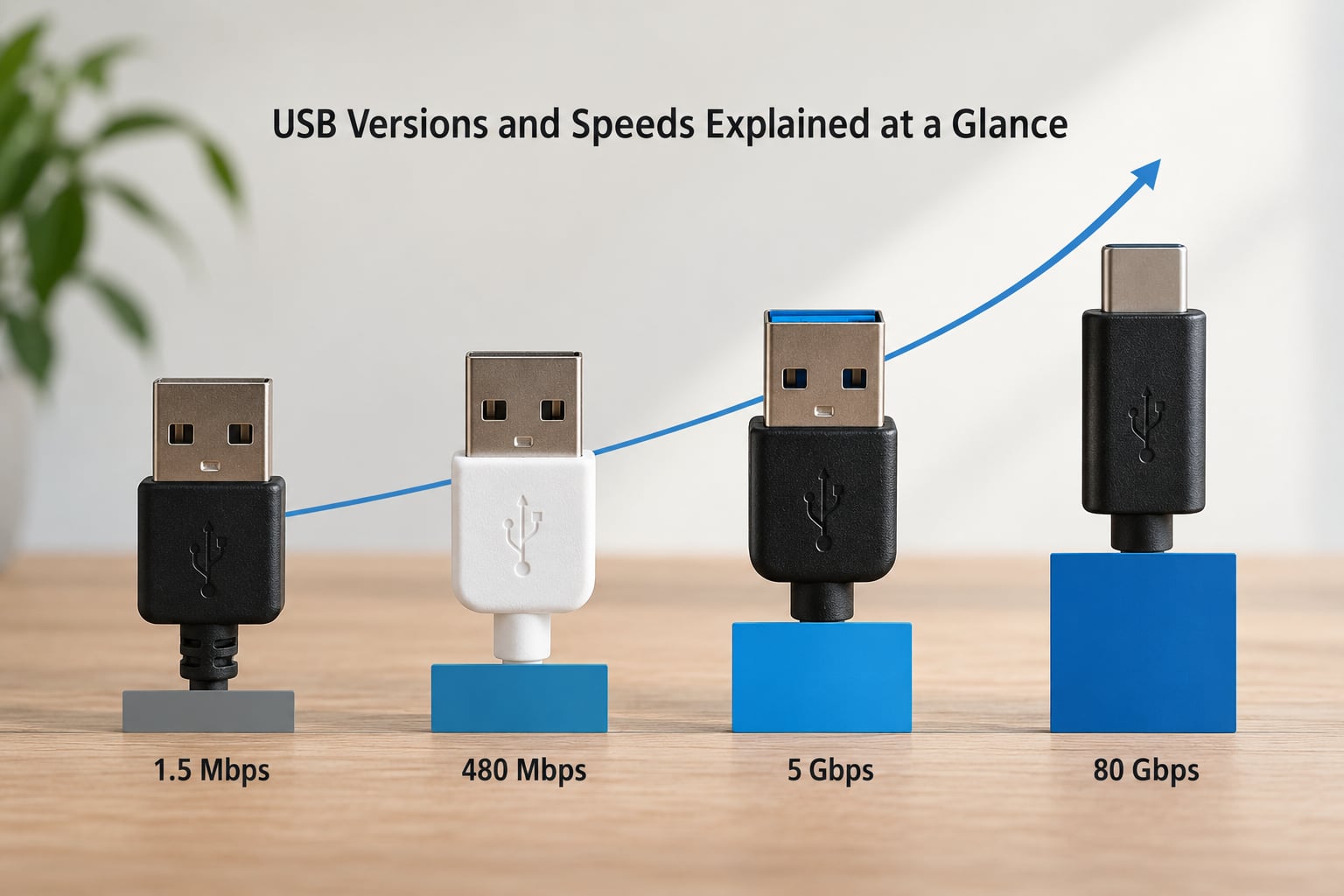
Each USB version defines a maximum signalling rate, a marketing name, and a set of typical connectors. The table below is the one to bookmark: it maps every generation from USB 1.0 through USB4 Version 2.0 to the numbers that actually matter.
| Version | Released | Max signalling rate | USB-IF name | Typical connector | Common use |
|---|---|---|---|---|---|
| USB 1.0 | 1996 | 1.5 Mbps | Low-Speed | Type-A | Keyboards, mice, joysticks |
| USB 1.1 | 1998 | 12 Mbps | Full-Speed | Type-A, Mini-B | Printers, early webcams, flash drives |
| USB 2.0 | 2000 | 480 Mbps | High-Speed | Type-A, Mini-B, Micro-B | External hard drives, phones, scanners |
| USB 3.2 Gen 1 | 2008 | 5 Gbps | SuperSpeed | Type-A, Micro-B, Type-C | Flash drives, SSDs, docking stations |
| USB 3.2 Gen 2 | 2013 | 10 Gbps | SuperSpeed+ | Type-C | External SSDs, video capture, VR headsets |
| USB 3.2 Gen 2×2 | 2019 | 20 Gbps | SuperSpeed 20 Gbps | Type-C only | Dual-lane storage, 8K capture cards |
| USB4 Version 1.0 | 2019 | 40 Gbps | USB 40 Gbps | Type-C only | Laptops, docks, external storage arrays |
| USB4 Version 2.0 | 2022 | 80 Gbps | USB 80 Gbps | Type-C only | Newest hosts; emerging docks and enclosures |
Two rows deserve attention. USB 3.2 Gen 2×2 needs a Type-C connector at both ends because it uses two lanes of signalling in each direction, where the other USB 3.x tiers use one. USB4 Version 2.0 is the first generation to break out of the traditional USB-A and USB-B physical ecosystem entirely.
What Do USB Version Numbers and Speed Labels Mean?
Two things get called a “USB version”, and confusing them causes most of the trouble. The version number is a revision of the USB-IF specification itself, like a software release. The speed label is a marketing class the USB-IF attaches to that revision, similar to how a phone gets a processor generation name.
Four names still appear on old packaging and older driver stacks, and all of them map onto a current name:
| Old name on old gear | Current USB-IF name | Signalling rate |
|---|---|---|
| USB 3.0 | USB 3.2 Gen 1 | 5 Gbps |
| USB 3.1 Gen 1 | USB 3.2 Gen 1 | 5 Gbps |
| USB 3.1 Gen 2 | USB 3.2 Gen 2 | 10 Gbps |
| USB 3.2 (unspecified) | Ambiguous, ask for the Gen number | 5 or 10 Gbps |
The USB-IF renamed USB 3.0 to USB 3.1 in 2017 because it had released a faster variant, then folded three existing specifications into the single “USB 3.2” label in 2019. That is why a box printed in 2015 and one printed last year can carry the same version number and completely different hardware.
The four marketing names are simpler. Low-Speed, Full-Speed and High-Speed cover USB 1.x and 2.0. SuperSpeed is 5 Gbps, SuperSpeed+ is 10 Gbps, and the newer labels just state the rate directly, so “USB 40 Gbps” and “USB 80 Gbps” need no decoding.
How Fast Is Each USB Version?
USB 1.0 Low-Speed: 1.5 Mbps
USB 1.0 shipped in 1996 at 1.5 Mbps, or roughly 187 KB/s. That was fine for a keyboard or a mouse reporting movement, because neither produces much data. The class is obsolete for storage, though a few very cheap mice still advertise it.
USB 1.1 Full-Speed: 12 Mbps
USB 1.1 doubled the rate to 12 Mbps, about 1.5 MB/s, and is still the ceiling for a surprising number of small devices. You will see it on low-end printers, laboratory instruments and some serial adapters. Copying a 1 GB file at that rate takes about 11 minutes.
USB 2.0 High-Speed: 480 Mbps
USB 2.0 raised the limit to 480 Mbps, and a well-behaved device typically reaches 30 to 40 MB/s in practice. It stayed the default for years, and it is still the only option on many monitors, hubs and car infotainment systems, which is why old transfers feel so slow.
The 480 Mbps figure is also where the bit-versus-byte confusion starts. Eight bits make a byte, so 480 Mbps works out to about 60 MB/s of raw link capacity, and less once overhead is subtracted.
USB 3.2 Gen 1: 5 Gbps
USB 3.2 Gen 1, the version originally sold as USB 3.0, moves 5 Gbps on one lane and delivers roughly 350 to 400 MB/s with a fast drive. It remains the most common tier on external SSDs, and it is the tier where moving up from USB 2.0 produces a change people actually notice.
USB 3.2 Gen 2: 10 Gbps
USB 3.2 Gen 2 doubled the signalling rate to 10 Gbps, carrying the SuperSpeed+ mark. Real throughput on a good external SSD lands around 700 to 900 MB/s. Note that the name requires a Type-C host port on the device side, because the second generation uses signalling that older Type-A hardware cannot negotiate.
USB 3.2 Gen 2×2: 20 Gbps
USB 3.2 Gen 2×2 reaches 20 Gbps by bonding two lanes in each direction instead of one. Practically, that doubles a Gen 2 link to about 1.4 to 1.8 GB/s when the drive keeps up. It is strictly a Type-C feature, and a cable with only one usable lane silently drops you to 10 Gbps or lower.
USB4 Version 1.0 and Version 2.0: 40 and 80 Gbps
USB4 Version 1.0 arrives in 2019 with 40 Gbps of usable bandwidth, and Version 2.0, published in 2022, doubles that to 80 Gbps. Version 2.0 hardware is still uncommon in the wild. A strong external NVMe drive under a Version 1.0 host typically copies at 2.5 to 3 GB/s, which is usually drive-limited rather than port-limited.
USB4 also changes the underlying model: bandwidth is allocated dynamically between display and data traffic through a packet-based tunnel, rather than being split into fixed dedicated pairs of wires.
What USB versions and speeds matter most in practice?
For most people, everything below 5 Gbps is legacy and everything above 20 Gbps is headroom. The tiers that decide real outcomes are 5 Gbps for general storage, 10 Gbps for external SSDs and video capture, and 40 Gbps for docks and multi-display workstations.
Why Is Real USB Speed Lower Than the Advertised Maximum?
A 10 Gbps connection that copies at 700 MB/s is not broken. Several layers sit between the headline number and your file copy, and each one removes a slice:
- Bits versus bytes. A 10 Gbps link is 1.25 GB/s before any accounting. Vendors print gigabits, tools measure megabytes.
- Protocol overhead. Every transfer is chopped into packets with headers, checksums and handshakes. Realistic throughput across a healthy USB 3.x link lands around 60 to 70 percent of the signalling rate.
- The device is usually the bottleneck. Users on r/pcmasterrace and linustechtips regularly post external SSD numbers around 150 to 200 MB/s and correctly conclude the drive is the limit, not the port.
- Host controller ceilings. A USB 3.2 Gen 1 host cannot feed a Gen 2×2 device faster than 5 Gbps, no matter what the device claims. Multiple devices share one controller’s bandwidth too.
- Cable quality and length. Long unshielded runs and charge-only cables drop to USB 2.0 behaviour entirely.
- Display and power load. When DisplayPort Alt Mode drives one or two monitors, the link gives up lanes for video and data throughput drops accordingly.
- Operating system overhead. The same flash drive measured on Linux versus Windows can differ substantially, because of filesystem caching and how aggressively each system flushes the write cache.
- Thermal throttling. Sustained transfers in an unventilated enclosure let the controller slow itself down partway through a large copy.
Quick diagnostic order: swap the cable first, since it is the cheapest variable and the most common culprit. Then confirm the host port version from its icon or your operating system, then test the device on a second port, and only then suspect the drive.
Does USB-C Tell You the Speed or Support USB4?
USB-C is only a connector shape. It says nothing about the protocol running inside it, which is why the same port on a laptop can deliver 5 Gbps with one cable and 480 Mbps with another.
What runs over USB-C depends on three separate things: the host controller silicon, the port’s lane configuration, and the cable. A single Type-C port can carry USB 2.0, USB 3.2 Gen 1, Gen 2, Gen 2×2, DisplayPort Alt Mode video, Thunderbolt 3 or 4, or USB4.
The icons printed next to a port are the closest thing to an honest answer. Look for the USB-IF trident, then the number of speed marks, then the battery or plug symbol for charging, then a display symbol for video, then the Thunderbolt lightning bolt. A battery symbol with two arrows either side indicates USB PD charging.
Thunderbolt 3 and 4 use the same physical connector as USB4 but are different protocols. Thunderbolt tunnels USB traffic across the high-speed link, so a Thunderbolt port usually exposes a rear Type-C port that may be wired for only one USB lane or for USB 2.0 data. That is a frequent reason a fast external drive feels slow on an otherwise capable machine.
What Are the Differences Between USB-A, USB-C, USB-B, and Micro-USB?
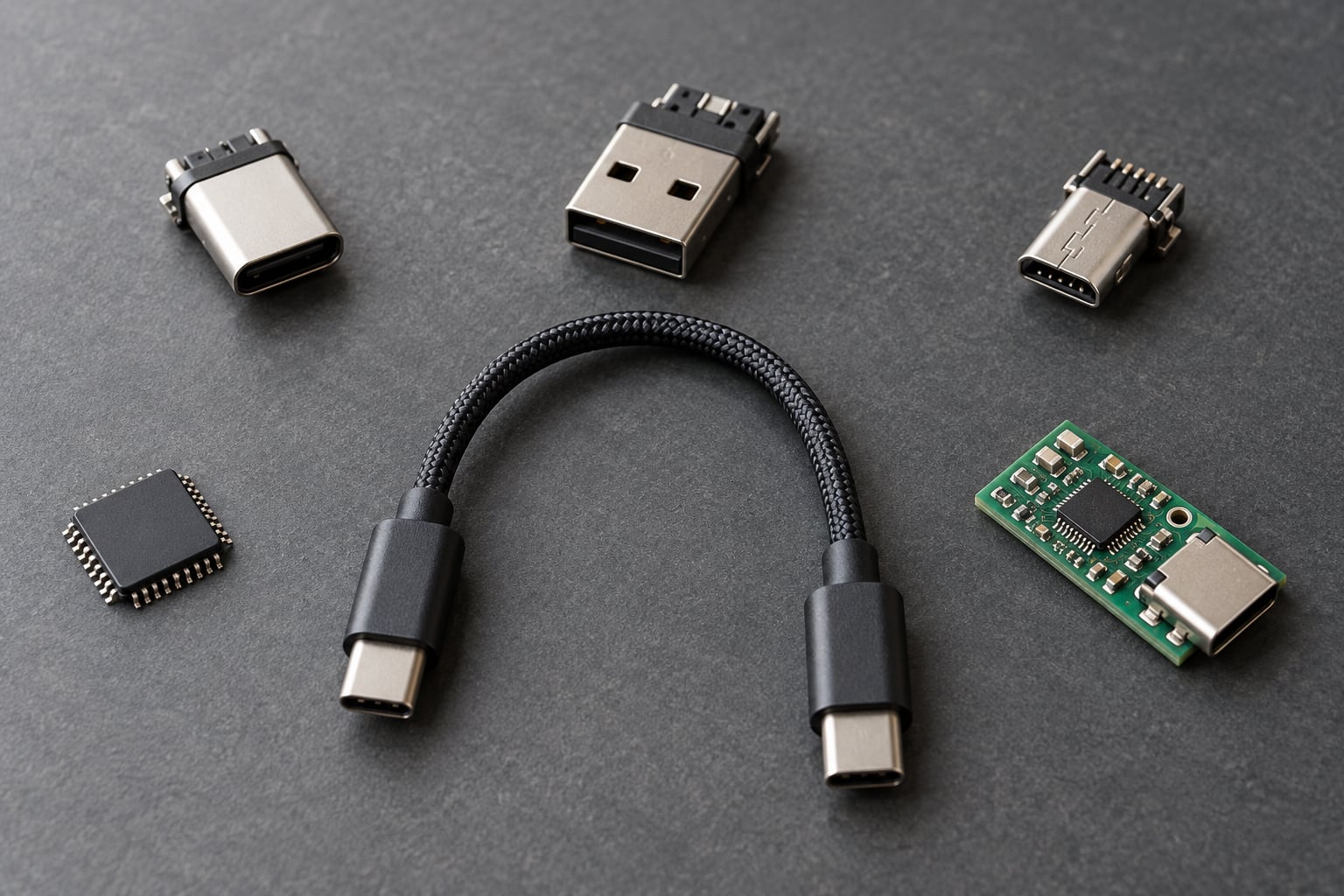
Connector shape describes the physical plug, not the standard. A Type-A plug can deliver anything from 12 Mbps to 5 Gbps depending on the standard negotiated inside it.
| Connector | Shape | Reversible | Typical max speed | Typical power | Where you meet it |
|---|---|---|---|---|---|
| USB Type-A | Flat rectangle | No | 5 Gbps (USB 3.2 Gen 1) | USB 2.0: 500 mA; USB 3.x: 900 mA | Computers, TVs, cars, older external drives |
| USB Type-C | Oval, 24-pin | Yes | 80 Gbps (USB4 Version 2.0) | Up to 240 W with USB PD 3.1 | Phones, laptops, docks, current external SSDs |
| USB Type-B | Near-square with chamfered corners | No | 480 Mbps on USB 2.0 ports | Up to 1.5 A | Printers, scanners, industrial and test equipment |
| Mini-B | Small trapezoid | No | 480 Mbps | Up to 500 mA | Older cameras, portable drives, some network gear |
| Micro-B | Thin, flat trapezoid | No | 480 Mbps | Up to 500 mA | Older phones, portable hard drives, cameras |
Type-A is not disappearing quietly. It survives wherever a device needs a physical stop against accidental unplugging, and where USB 2.0 is enough anyway. What has changed is that the fast tiers moved to Type-C, because reaching 10 Gbps and above requires more signal pairs than Type-A can carry.
How Much USB Speed Do Common Tasks Need?
Match the tier to the workload rather than to the headline. The figures below are realistic sustained transfer rates, not link maximums.
| Task | USB 2.0 (about 35 MB/s) | USB 3.2 Gen 1 (about 380 MB/s) | USB 3.2 Gen 2 (about 800 MB/s) | USB4 (about 2,500 MB/s) |
|---|---|---|---|---|
| Office document (2 MB) | Instant | Instant | Instant | Instant |
| Photo burst, 50 RAW files (2 GB) | About 1 minute | About 5 seconds | About 3 seconds | About 1 second |
| 1080p clip, 30 minutes (24 GB) | About 12 minutes | About 1 minute | About 30 seconds | About 10 seconds |
| 4K footage, 1 hour (150 GB) | About 70 minutes | About 7 minutes | About 3 minutes | About 1 minute |
| 500 GB photo library | About 4 hours | About 22 minutes | About 11 minutes | About 4 minutes |
| 1 TB full backup | About 8 hours | About 45 minutes | About 22 minutes | About 7 minutes |
Keyboards, mice, webcams, printers and monitors never need more than USB 2.0 bandwidth, whatever their port shape suggests. External SSDs and sustained video offload need 10 Gbps or more. Multi-display docks and shared storage arrays are where 40 Gbps starts earning its place.
Can You Use an Older USB Device With a Newer USB Port?
Yes, and it will work. Every USB host negotiates the highest rate both ends support, so a USB 3.2 Gen 1 drive in a USB4 port runs at 5 Gbps, and a USB 2.0 stick in the same port runs at 480 Mbps. Backward compatibility is the rule rather than the exception.
What changes is the physical connection. A Type-A to Type-C adapter or cable carries the old device across, and a Micro-B device needs an adapter shaped for it. Plenty of cheap adapters are wired only for USB 2.0 data, which is the most common reason a fast drive behaves like an old one.
Video and charging can drop out in ways data does not. An adapter that passes USB data but not DisplayPort Alt Mode gives you a working drive and no external monitor output. Charge-only cables carry no data lines at all, and cables rated for 60 W cannot deliver the full 240 W of USB PD 3.1, which requires a 5 A E-marked cable and a host port wired for it.
One more trap: splitting a Type-C port across several outputs uses bifurcation, and each extra branch divides the available lanes. Four ports on a hub might run at one quarter of the single-port rate, or less once the hub’s own uplink is factored in.
How Do You Choose the Right USB Version?
Pick the lowest tier that comfortably handles your workload, then verify the parts you already own:
- Keyboard, mouse, webcam, printer, monitor: USB 2.0 bandwidth is far more than they use.
- Phone transfer and charging: USB 3.2 Gen 1 with a USB-C to USB-C cable. For fast charging, check the PD rating rather than the data rate.
- Thumb drive for documents: USB 3.2 Gen 1 unless you move video.
- Camera and flash card reader: USB 3.2 Gen 1 for stills, Gen 2 for video offload.
- External SSD for editing or backups: USB 3.2 Gen 2 for one fast drive. Gen 2×2 rarely helps unless the enclosure is built for it.
- RAID array, NAS, multi-display dock: USB4 Version 1.0, because bandwidth sharing across lanes and ports is the whole point.
- New workstation or laptop buying decision: take USB4. The host cost is falling, and it is the tier that will absorb the next device you buy.
To verify what you already have, read the icon next to the port, then confirm from the operating system. On Windows, Device Manager shows the negotiated controller for a connected device. On macOS, System Information reports the USB bus tree with each device’s link speed. On Linux, lsusb -t prints the speed the host actually granted, which is the number that settles arguments.
Worth knowing at the silicon level: the speed ceiling lives in the host controller and its PHY, not in the connector. Each generation multiplies the number of high-speed differential pairs the PHY must equalise and the signalling rate it must recover, which is why Gen 2×2 and USB4 both require all four lanes wired on the host.
Frequently Asked Questions
Is USB 3.2 faster than USB 3.0?
Not inherently. USB 3.2 is a consolidation label covering what were previously separate specifications, and the speed depends on the Gen suffix. USB 3.2 Gen 1 is 5 Gbps, which is exactly the speed of the old USB 3.0. USB 3.2 Gen 2 is 10 Gbps and Gen 2×2 is 20 Gbps, both faster. Always check the generation number.
Why do USB flash drives advertise speeds higher than their real transfer rate?
The advertised figure is usually the theoretical interface rate, not the drive’s sustained write speed. Protocol overhead alone removes around 30 to 40 percent, and most flash drives cannot write small blocks quickly. A 5 Gbps drive delivering 150 to 200 MB/s is normal behaviour, not a fault, and community tests regularly confirm that range.
Can any USB-C cable support USB4 and 40 Gbps transfer rates?
No. A USB-C cable that lacks the E-marker chip, or that is not rated for the required bandwidth, will cap the link at USB 2.0 or 10 Gbps depending on its construction. For 40 Gbps you need an E-marked cable built for that rate, and the host port must have all four high-speed lanes wired. Check the cable marking before buying.
Is USB-C always faster than USB-A?
No. The connector shape says nothing about the protocol inside. A USB-C port can carry only USB 2.0 at 480 Mbps, while a blue USB-A port on a desktop can run 5 Gbps. Judge performance by the negotiated link speed reported by the operating system, not by the shape of the plug.
Does USB backward compatibility mean an older device will run at the newer port’s maximum speed?
No. Backward compatibility means the connection will work, not that it will be fast. The host and device negotiate the highest rate both support, so a 5 Gbps drive in a USB4 port stays at 5 Gbps and a USB 2.0 device stays at 480 Mbps. Expect the old device’s own speed, capped by any limitations in the port or cable you used to connect it.
Conclusion
Connector shape and marketing names are poor speed guides. A USB-C port can run at anything from 480 Mbps to 80 Gbps, and “USB 3.2” without a generation number tells you very little.
So check four things before buying: the USB standard and its generation, the lane count on the host port, the controller’s ceiling on that machine, and whether the cable is rated for the rate and wattage you need. Then pick the lowest tier that finishes your actual transfers comfortably, and upgrade only when you can point at the task that is too slow.